Smart MindMap tutorials
Start with the current app quick start, adapt an editable work example or follow the mind map to PowerPoint workflow. Explore earlier videos for more mind map and diagram tasks.
Start a mind map in the current app
This short guide follows the current in-app help; it is separate from the older video recordings.
- Open File → New for a blank canvas, or File → New From Template → Mind Map for a ready-made starting point.
- Add your central idea. Select the shape and drag its quick-connect indicator into an empty area to create a connected branch. Repeat for related topics.
- Keep one idea per shape and use colours to group related branches. Save your diagram, or use File → Export As when you are ready to share.
Choose an editable work example → · Get help with a specific task
Ready to share the result? Compare the supported export formats, or find an example for your next diagram.
Download, open and adapt
Choose an editable mind map for work
Start with a product launch brief or a project review map. Replace the example notes with your own, then refine the branches for your next meeting or presentation.
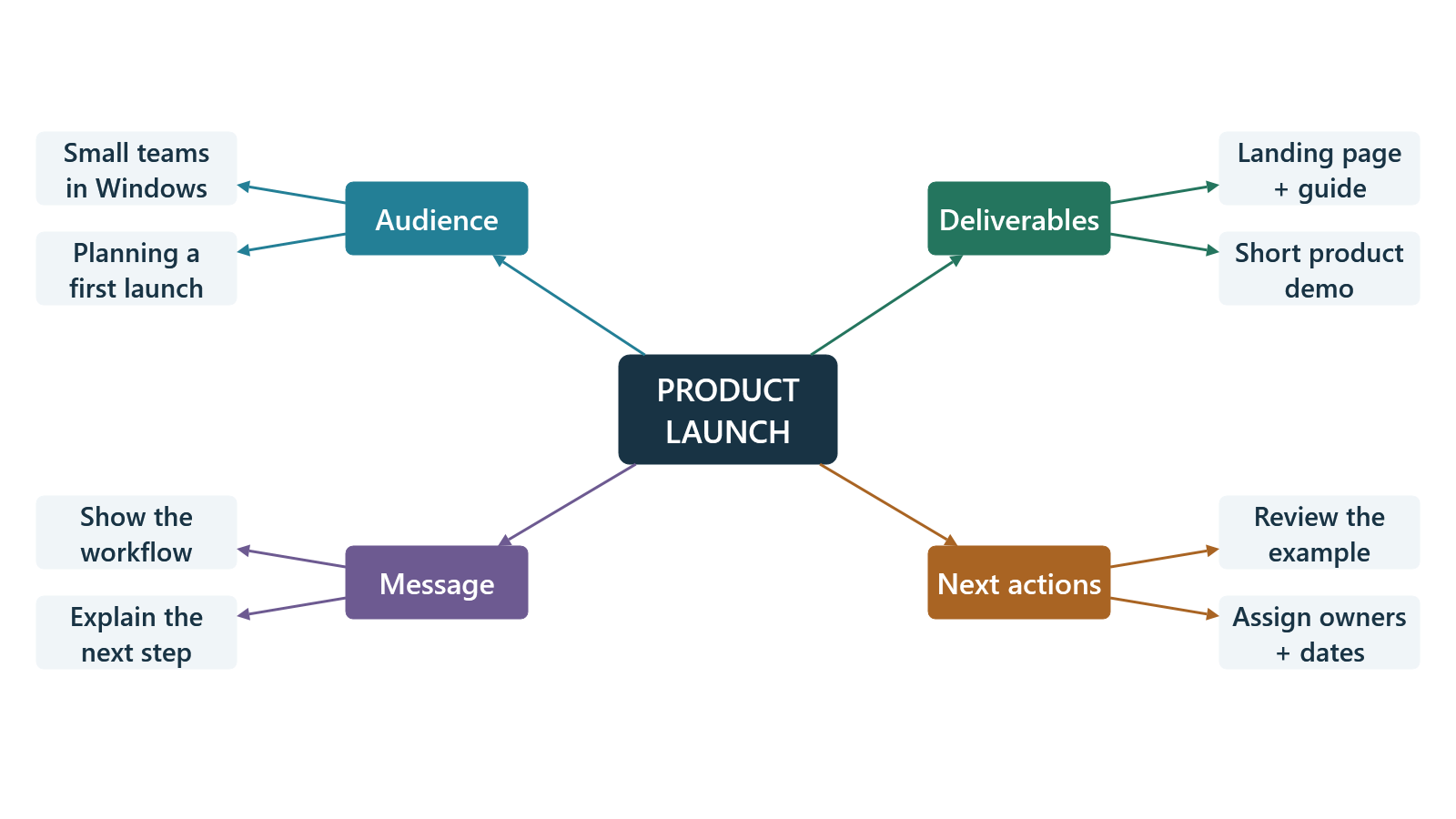
Product launch
Bring your audience, launch message, deliverables and next actions into one clear brief.
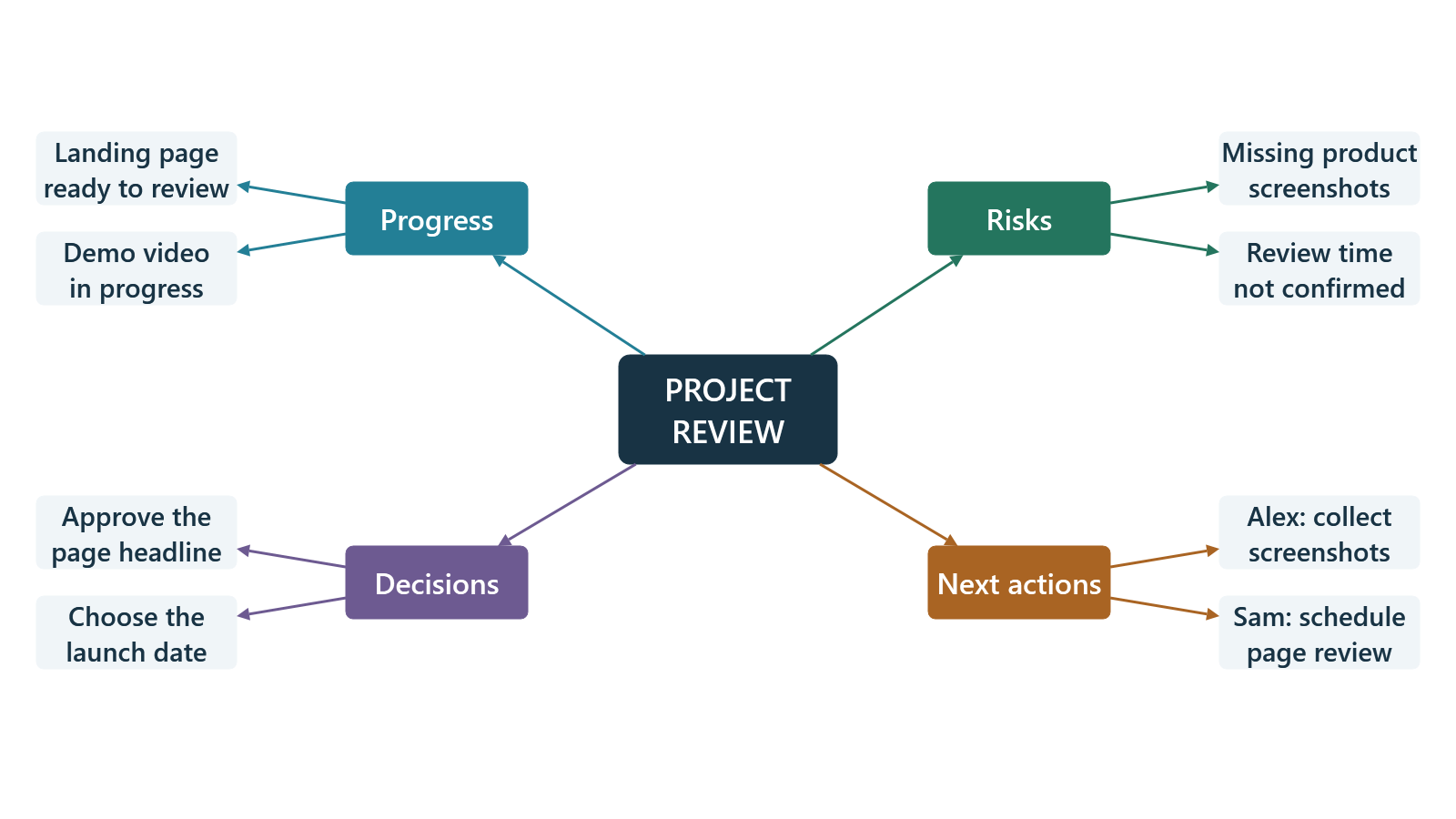
Project review
Prepare a focused team or client update with progress, decisions, risks and next actions.
The ZIP contains product launch, project review and study plan examples, plus instructions. Extract it first. Open an XML file in Smart MindMap for Windows to edit it; the PNG previews can be viewed without the app. These files are separate from the PowerPoint tutorial download below.
Current app video · 1:24
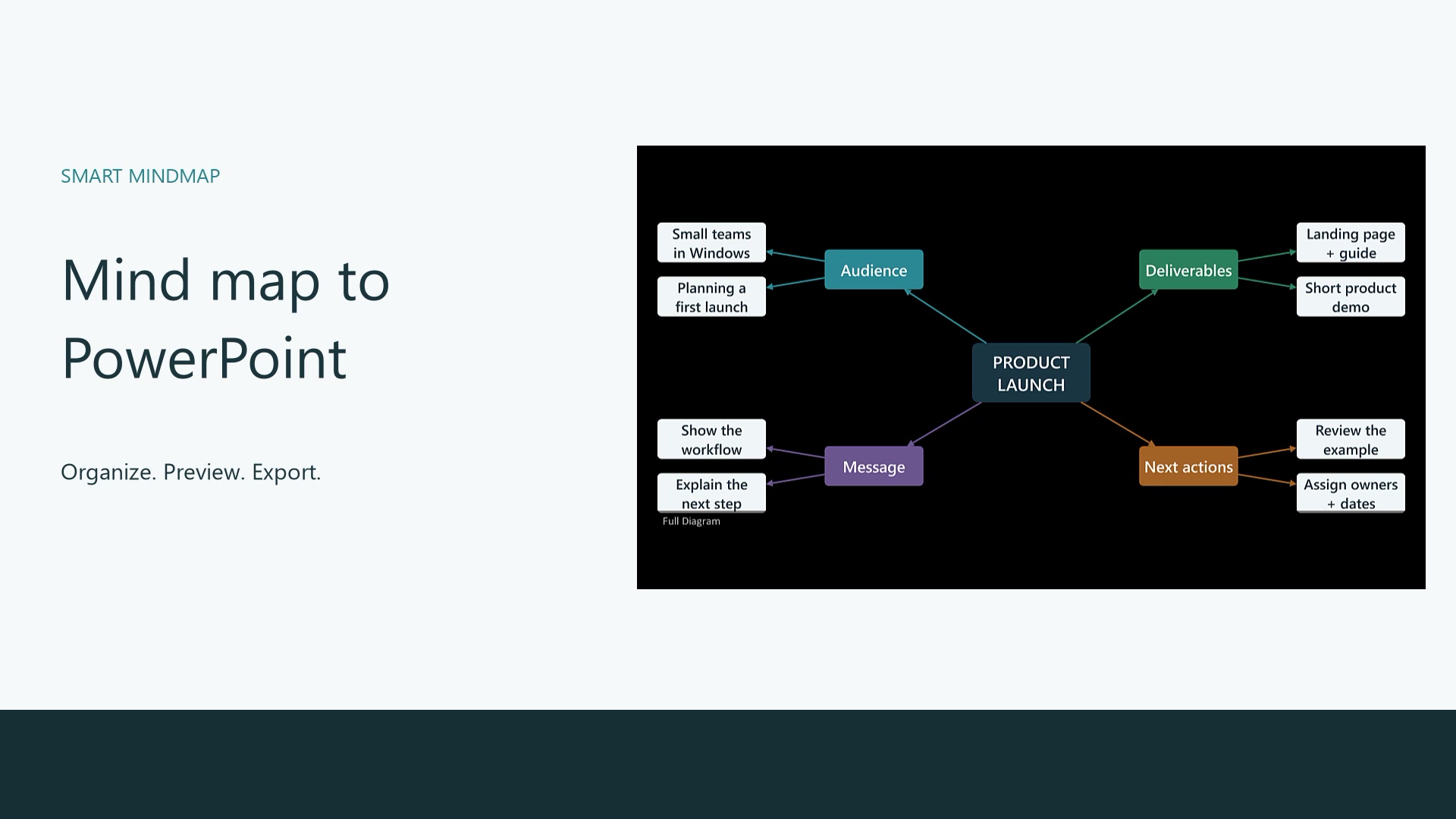
Turn a mind map into PowerPoint
Follow a product launch example from its first overview to a six-slide presentation. Watch the Windows workflow, see what stays editable and download the XML project and PPTX deck.
Earlier video tutorials
Recorded in 2020–2022; some controls differ from the current app. For current instructions, use the quick start above or open Help → Quick Start in the app.
Embedded videos follow your cookie preferences. You can also watch directly on YouTube.
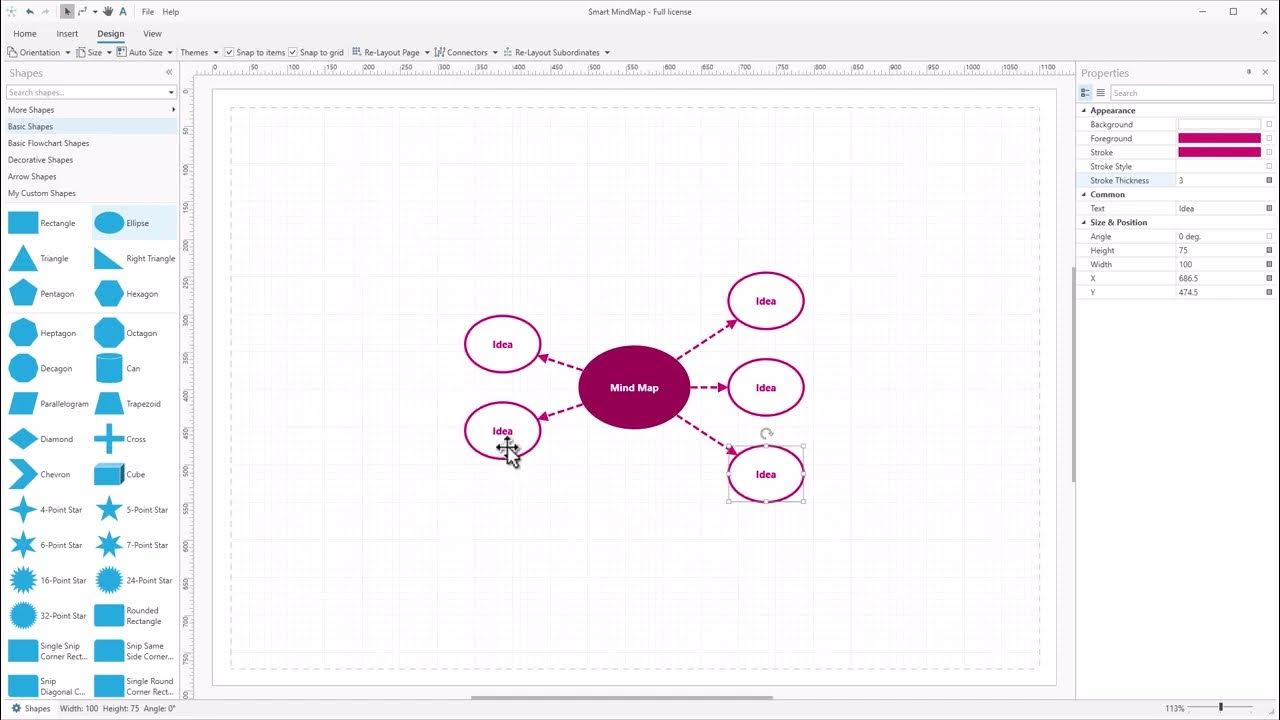
Tutorial 1 · 2:06
Creating a basic Mind Map with Smart MindMap
Create a basic mind map and arrange connected ideas on the canvas.
Published
Embedded playback uses YouTube cookies. You can also open the video directly on YouTube.
Tutorial 2 · 1:29
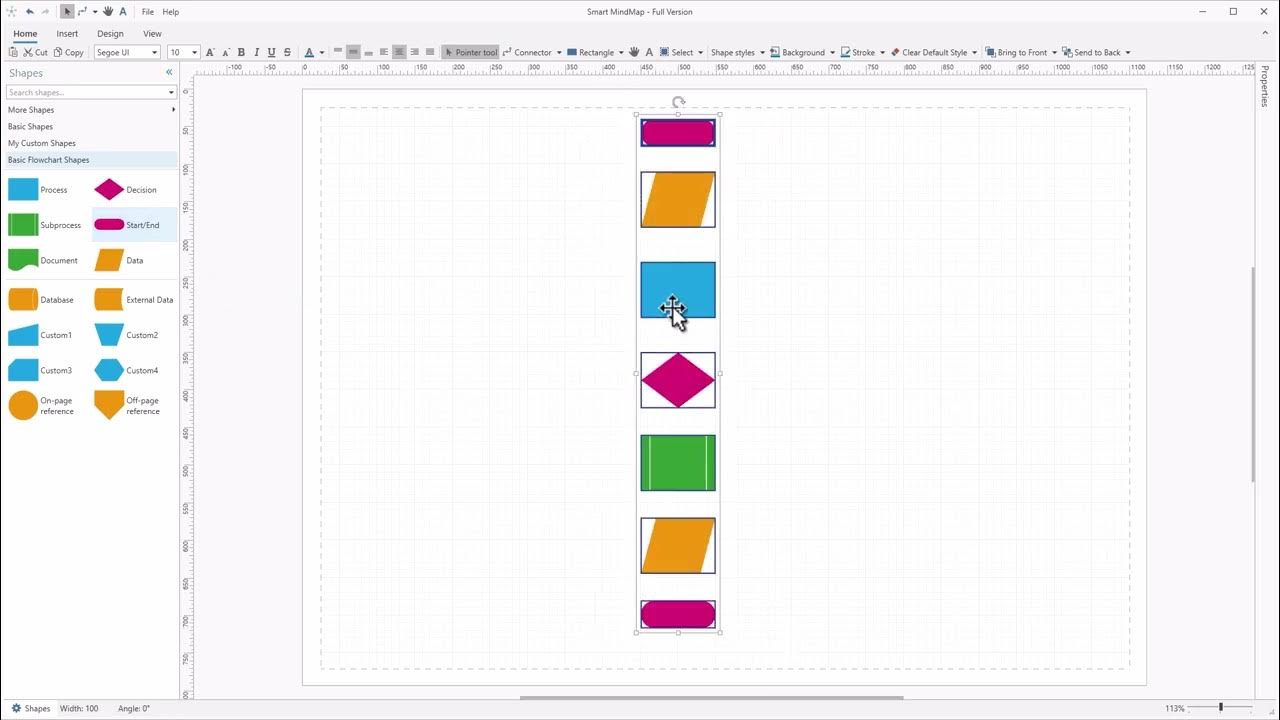
Creating a basic Decision Flowchart in Smart MindMap
Create a decision flowchart to explain a process with steps and branches.
Published
Embedded playback uses YouTube cookies. You can also open the video directly on YouTube.
Tutorial 3 · 2:22
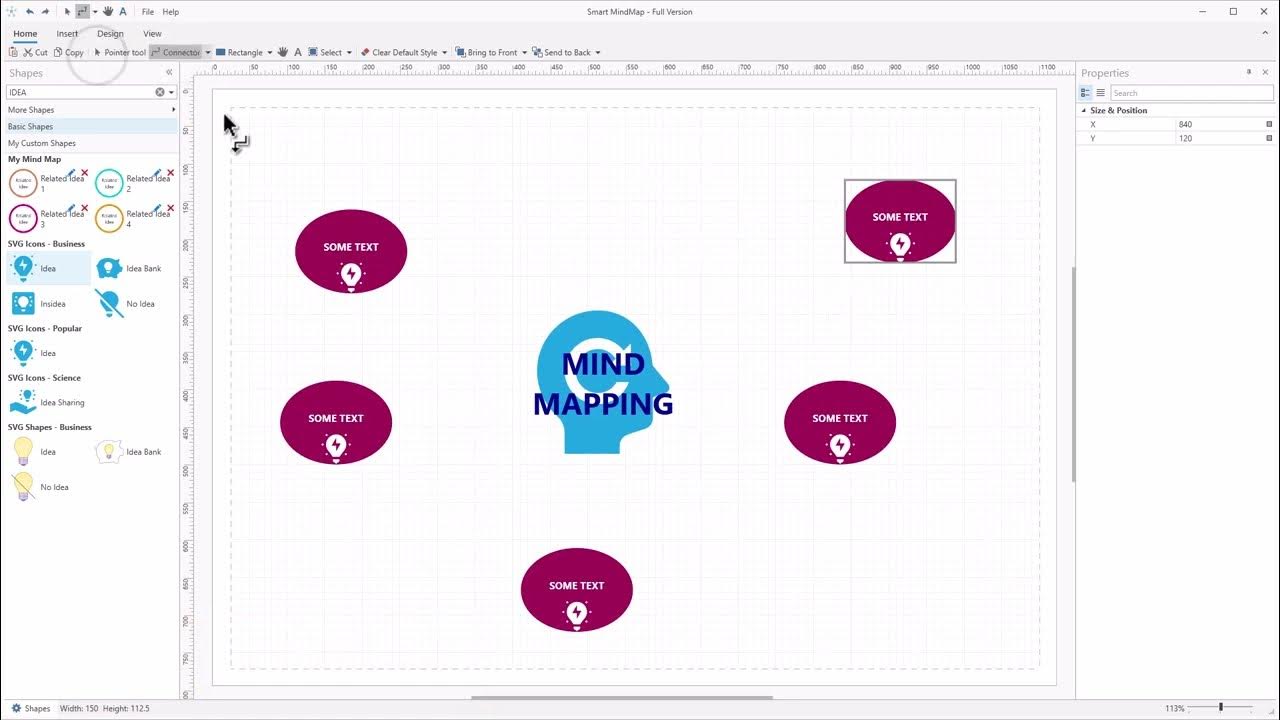
Grouping shapes in Smart MindMap
Group shapes to work with related parts of a diagram together.
Published
Embedded playback uses YouTube cookies. You can also open the video directly on YouTube.
Tutorial 4 · 1:19
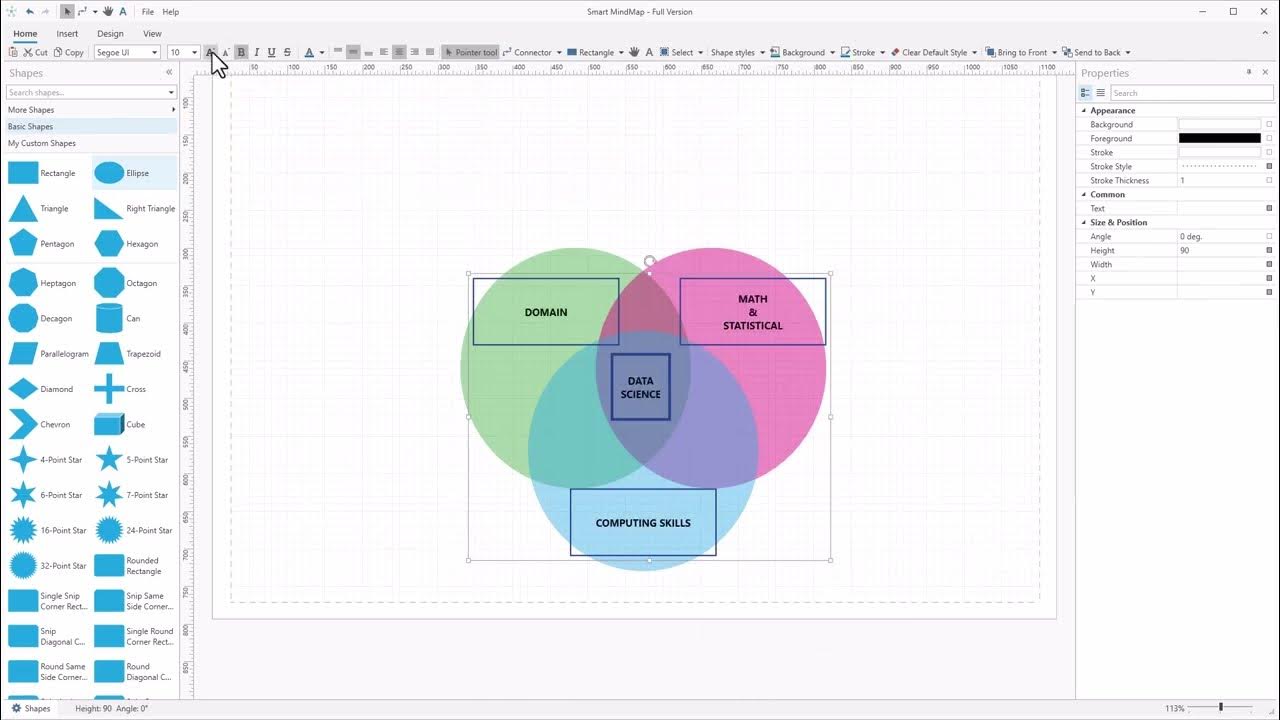
Create Venn Diagram in Smart MindMap
Use overlapping shapes and transparency to create a Venn diagram.
Published
Embedded playback uses YouTube cookies. You can also open the video directly on YouTube.
Tutorial 5 · 2:13
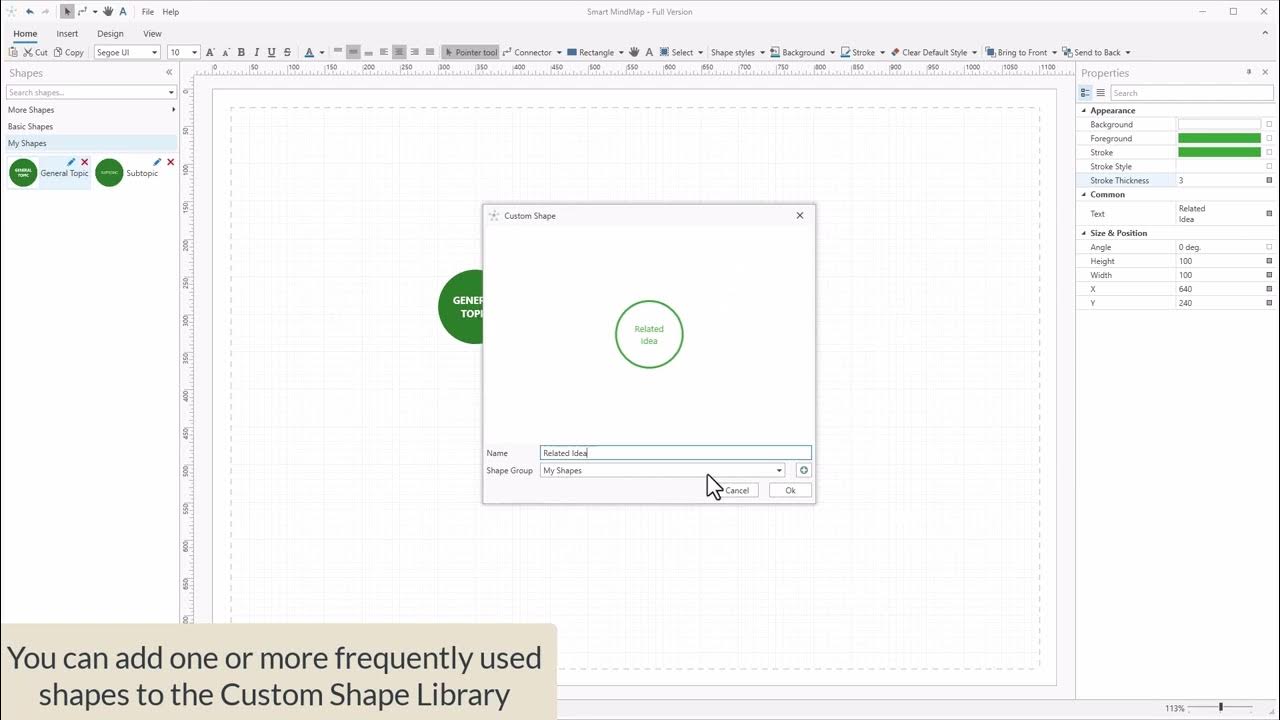
Custom Shapes Library in Smart MindMap
Explore the Custom Shapes Library for reusable diagram elements.
Published
Embedded playback uses YouTube cookies. You can also open the video directly on YouTube.
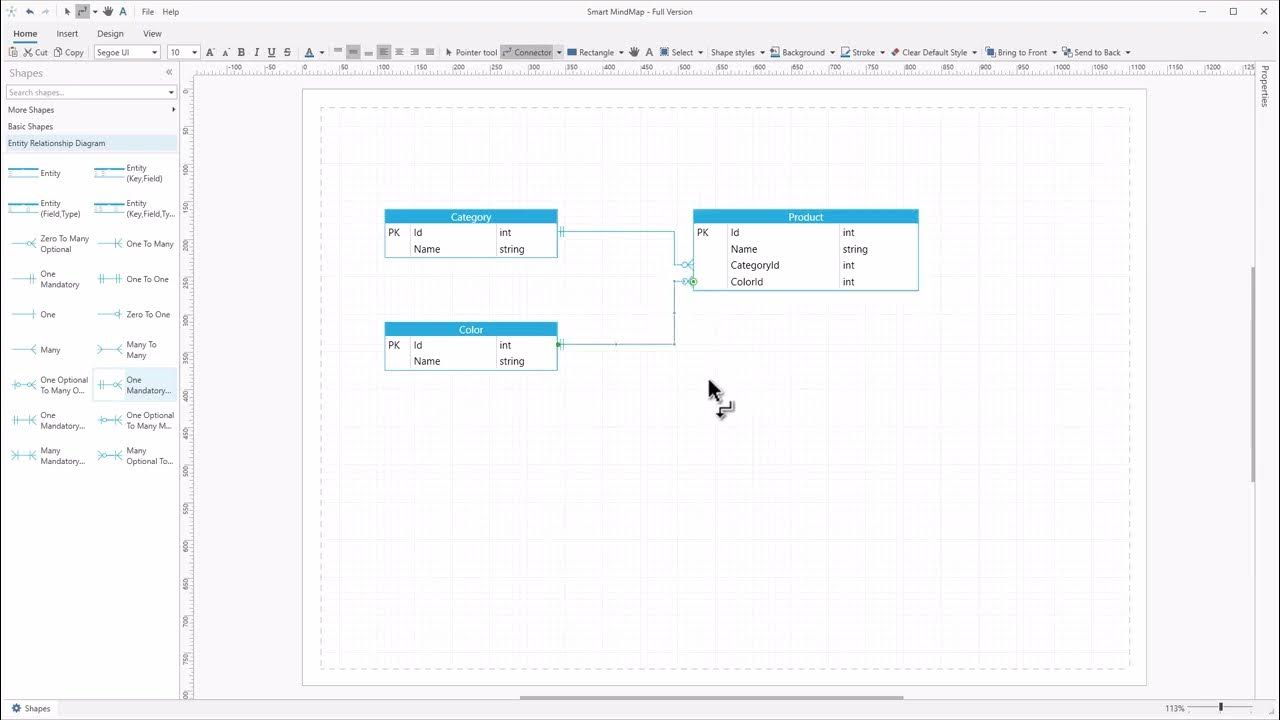
Tutorial 6 · 1:47
Creating an Entity Relationship Diagram (ERD) in Smart MindMap
Create an entity relationship diagram to represent entities and their relationships.
Published
Embedded playback uses YouTube cookies. You can also open the video directly on YouTube.
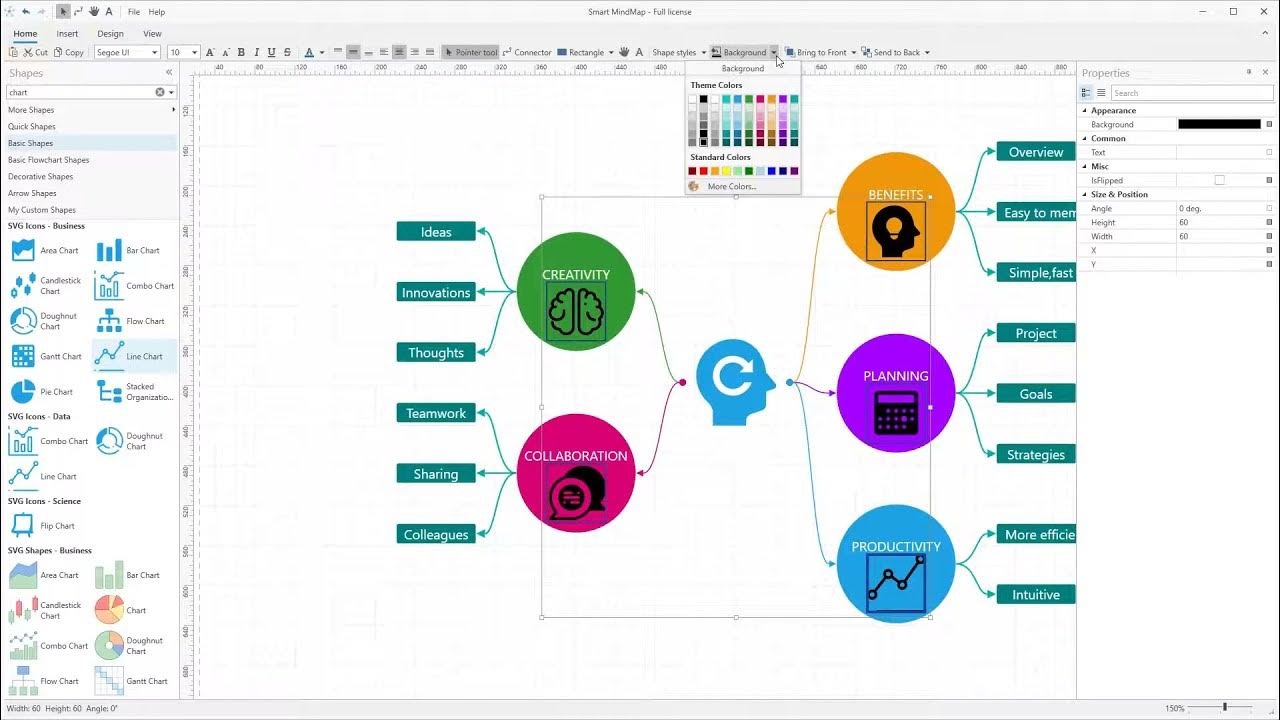
Tutorial 7 · 5:17
Creating a Mind Map with Smart MindMap
A longer introduction to creating a mind map, recorded in an earlier version of Smart MindMap.
Published
Embedded playback uses YouTube cookies. You can also open the video directly on YouTube.